

Introducing the new Campaign Maps
Place your Locations, connect their maps, and open their details without leaving the map.
Oct 10, 2026

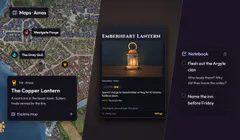
The party is heading for the Copper Lantern. You have an inn to describe, a taproom to return to, and a locked cellar they haven’t explored yet. Campaign Maps keeps those places connected.
The new Maps page connects your uploaded maps to Locations in your campaign. Select a place to see its details, move into its linked map, or edit the Location without losing the map you were using.
Start with a place
Open a map and choose Add place. You can use an existing Location or create one there. Existing Locations can be expanded so you can check what they are before placing a pin, rather than having to recognise them by name alone.
Creating a Location uses the same form as the rest of your campaign. Start with the name, kind and where it belongs. Open the other sections when you need to add an overview, world details or private preparation. You can come back and fill those in later.
The artwork comes from the Inkarnate community, used with creator permission. The coloured pins and Location descriptions are our example campaign content.
Inkarnate and other mapmaking tools give you a place to build your worlds, towns and interiors. Bring the finished artwork into Multiloop, add your Locations, and keep the map alongside the characters, notes and stories you use to run your campaign.
One Location, wherever you open it
The pin points to a Location record. It isn’t a separate copy of that place. A change to the Location carries through to the other places you view it in your campaign.
The smaller map pop-up gives you the useful details without covering the whole map. Explore map opens linked artwork; Details opens the Location record, while Edit and Pin handle its details and marker. You can drag the pop-up out of the way without moving the pin.
Places within, and maps to explore
The Taproom and locked cellar belong inside the Copper Lantern. They appear under Places within, so you can open their Location details without mistaking them for the inn’s map.
A linked interior is a separate piece of artwork. Use Explore map to open it, then return to the parent map when you’re ready. You can add the nested Locations before you have an interior map to upload.
The same idea works for a world and a region, a city and a district, or a building and an interior. You decide which maps are useful. A Location can still be placed on a map before you have made a more detailed map for it.
Make the markers yours
Choose the Location’s icon and colour so you can recognise it across the campaign. Pin settings handle how it appears on this map, including its size. Unlock a pin when you want to move it, then lock it again when it is in place.
Those are different from the Location’s kind. A building remains a building even if an anchor is the clearest symbol for the family who lives there.
Choose the view you need
Use Display to show pins, keep names visible, or show hidden-pin badges. Your display choices are saved with your account. Hidden-pin badges start off, so they don’t have to be part of the map’s everyday appearance.
Player preview helps you check the player-facing view. The availability controls decide who can access the map and its content. Hiding a badge on your own screen does not change those permissions.
Fit brings the full image back into view, and fullscreen gives you more room to work. Start with a map you already have and one Location you want to connect. You can build out the rest as the campaign needs it.
Using a virtual tabletop?
Do you use Foundry VTT or another virtual tabletop alongside Multiloop? If easier map transfers would save you work, tell us which tool you use and what you’d want to bring across. Automatic connections would be a future addition; your interest will help us decide what to explore.
Open your campaigns and choose Maps to try it.
Have an idea for Multiloop, or spotted a problem?
Sign in to share feedback